







menu

How to Record Voice Online

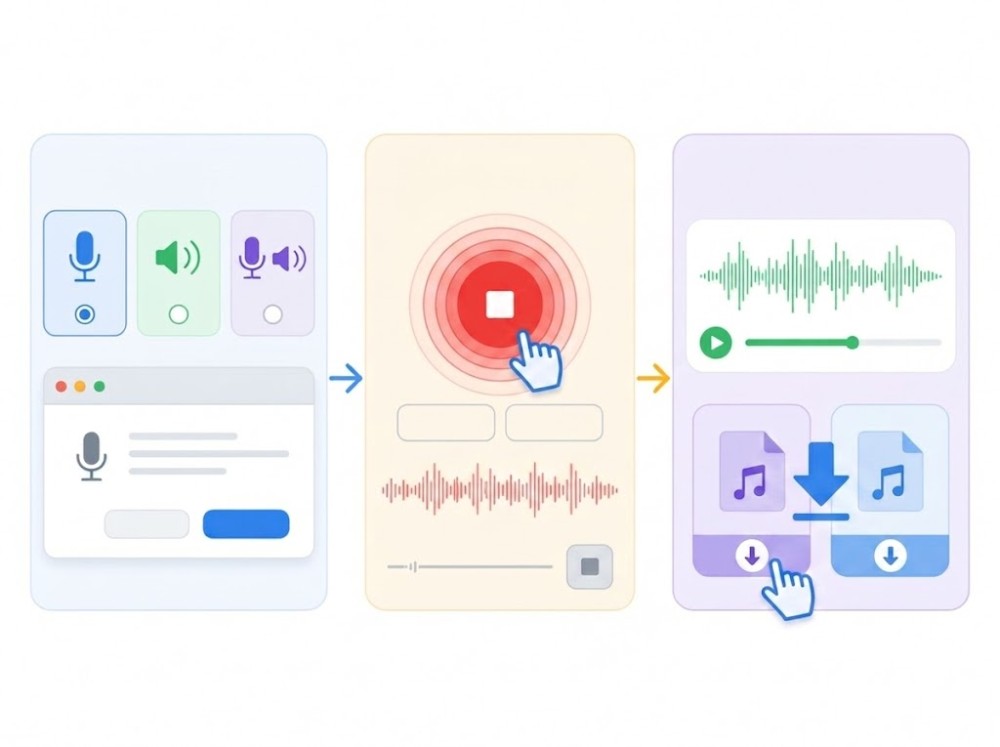
  • 01
    Choose Microphone

    Open the online Voice Recorder in your browser and select Microphone as the recording source to record only your voice.

  • 02
    Start Recording

    Next, click the "Start Recording" button, allow the browser to access your microphone, and start recording.

  • 03
    Download the Recording

    Once done, end the voice recording by clicking "Stop recording", then download it as an MP3 and preview it afterward.
voice recorder step

Record Microphone & System Audio
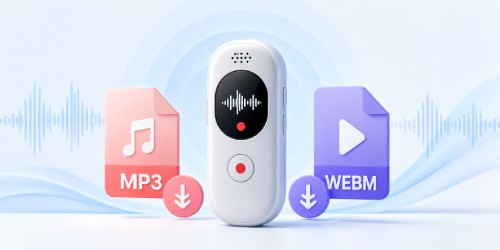
Export as MP3 or WEBM
Save your recordings in the format that best fits your needs. This voice audio recorder lets you choose between MP3 and WEBM before downloading your audio.
Select the audio format that works best for playback, sharing, or future editing. Your recording is ready to download once the recording is complete.

MP3 or WebM
Voice-Only Recording
Capture only the sound from your microphone without recording your screen or camera. This makes it suitable for voice notes, narrations, interviews, and spoken content.
Simply allow microphone access, start recording, and stop when you're finished. The tool focuses entirely on recording your voice.

Copy or Export Results
High-Quality Audio Capture
Record clear audio for meetings, lectures, podcasts, or personal notes. This free online voice recorder helps preserve voice clarity throughout your recording.
Use your device's microphone to capture high-quality sound directly in your browser. Download it in your preferred format once the recording is complete.

Record in Seconds
Record in Seconds
Start recording immediately after granting microphone access, so you can capture important audio without unnecessary setup or delays.

Privacy-Focused Recording
Record voice directly in your browser without extra software or account setup, keeping your voice recordings simple and private.

Works Everywhere
Works Everywhere
Use this voice recorder online on desktops, laptops, tablets, and supported mobile devices directly from your web browser.

Everyday Recording
Everyday Recording
Capture voice notes, reminders, interviews, lectures, podcasts, or personal recordings whenever you need clear, reliable audio.

pro video recorder
crown Upgrade to Pro

Upgrade to Aqua Demo

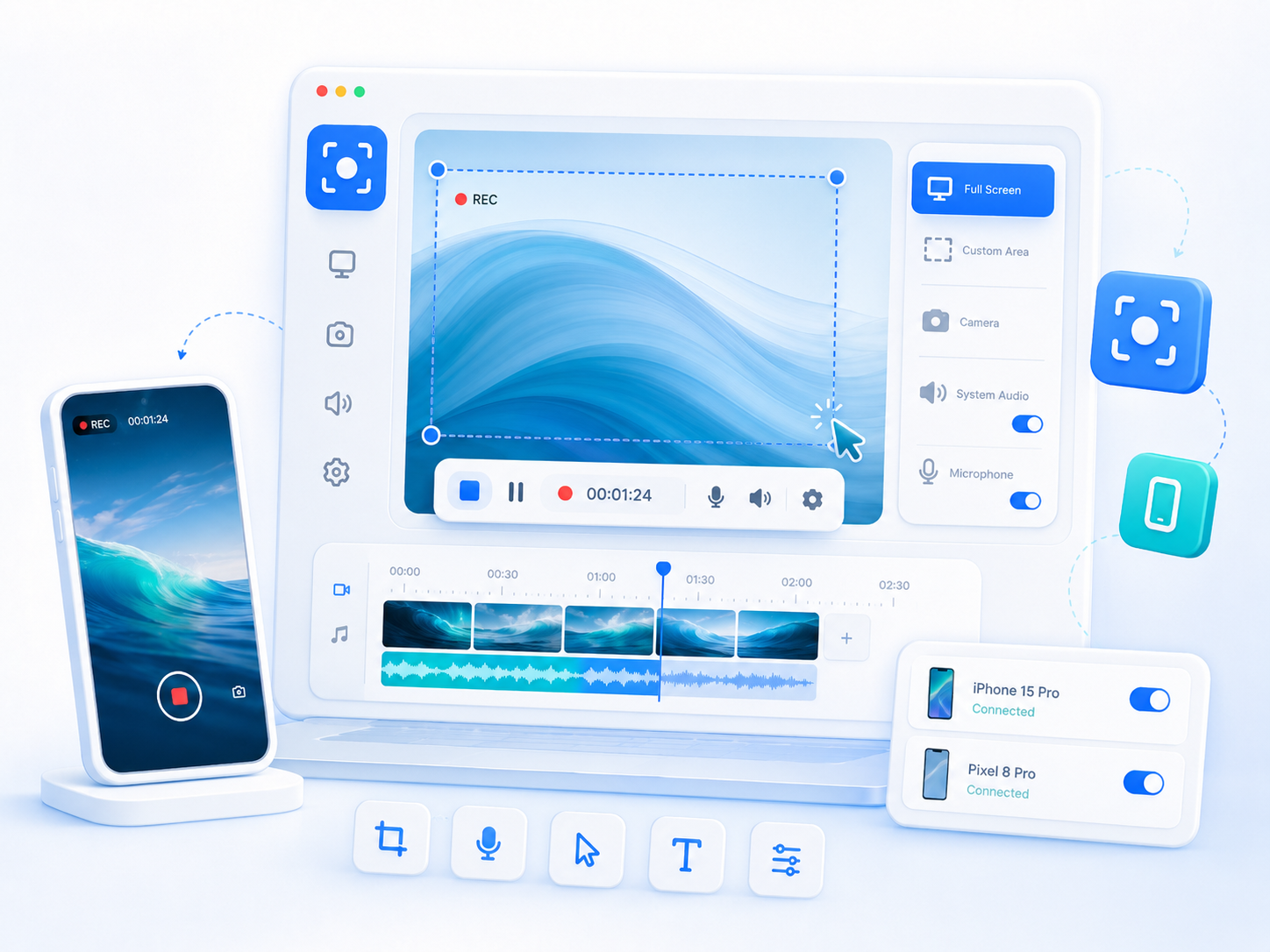
Record screens, audio, and webcam with advanced recording and editing tools.
  • Record full screen or custom size
  • Capture system sound and mic
  • Record webcam simultaneously
  • Scheduled screen recording
  • Built-in basic video editor
  • Real-time annotations
Top-Rated by Customers
Window 11/10/8/7, macOS 10.7 and above

Frequently Asked Questions

Can I use the Voice Recorder without signing up?

No. The Voice Recorder requires you to sign up before you can start recording. You can register with your email address and a few basic details, or sign in directly with your Google account. Once you're logged in, you can access the recording features and save your audio.

What microphone settings should I check before recording?

Before recording, make sure your browser has permission to access your microphone. You should also confirm that the correct microphone is selected if your device has multiple audio inputs. Testing your microphone beforehand can help ensure your voice is recorded clearly.

Can I record voiceovers for videos or presentations?

Yes. The Voice Recorder is suitable for creating voiceovers for videos, presentations, tutorials, and other projects. Simply record your narration using your microphone, then download the audio file when you're finished. You can use the recording with your preferred video or presentation software.

How can I reduce background noise while recording?

Record in a quiet environment whenever possible to minimize unwanted sounds. Using a good-quality microphone and keeping it close to your mouth can also improve voice clarity. Closing nearby windows, turning off fans, and reducing other background noise sources will help produce a cleaner recording.

Can I preview and re-record my voice?

Yes. After downloading your recording, you can play it back to review the audio quality and content. If you're not satisfied with the result, you can simply start a new recording and record your voice again until you get the version you want.

Back to Top
Contact Us