 Aqua App



Chat with Document for AI Analysis


How to Chat with a Document
-
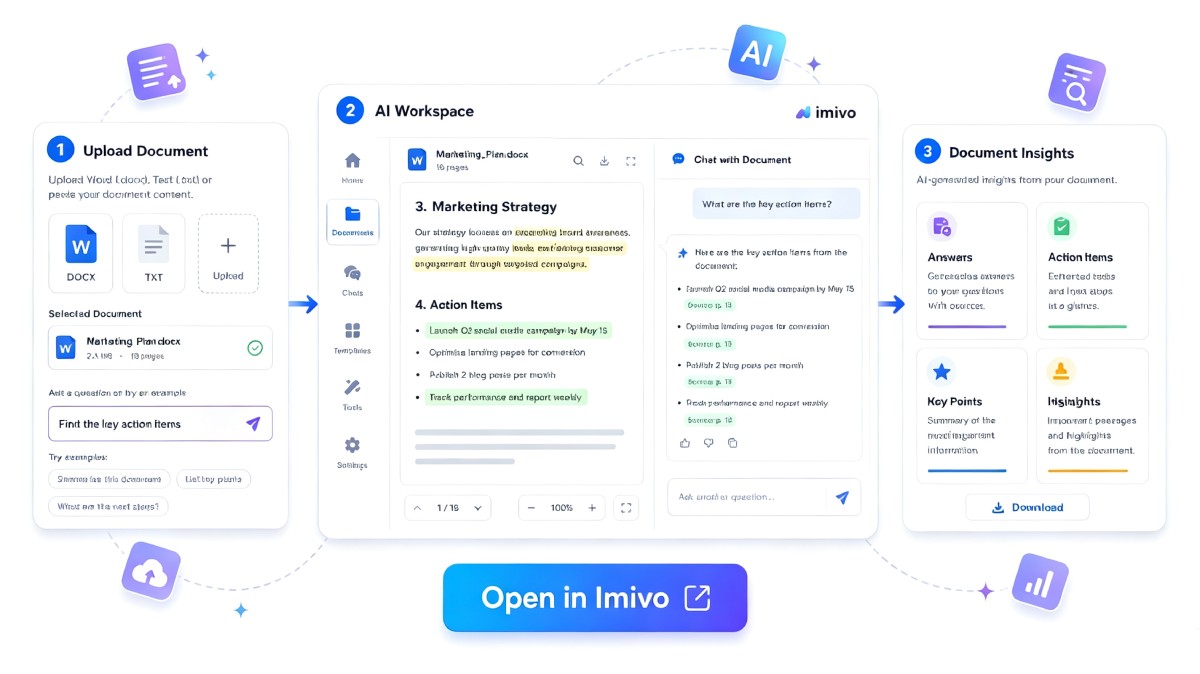
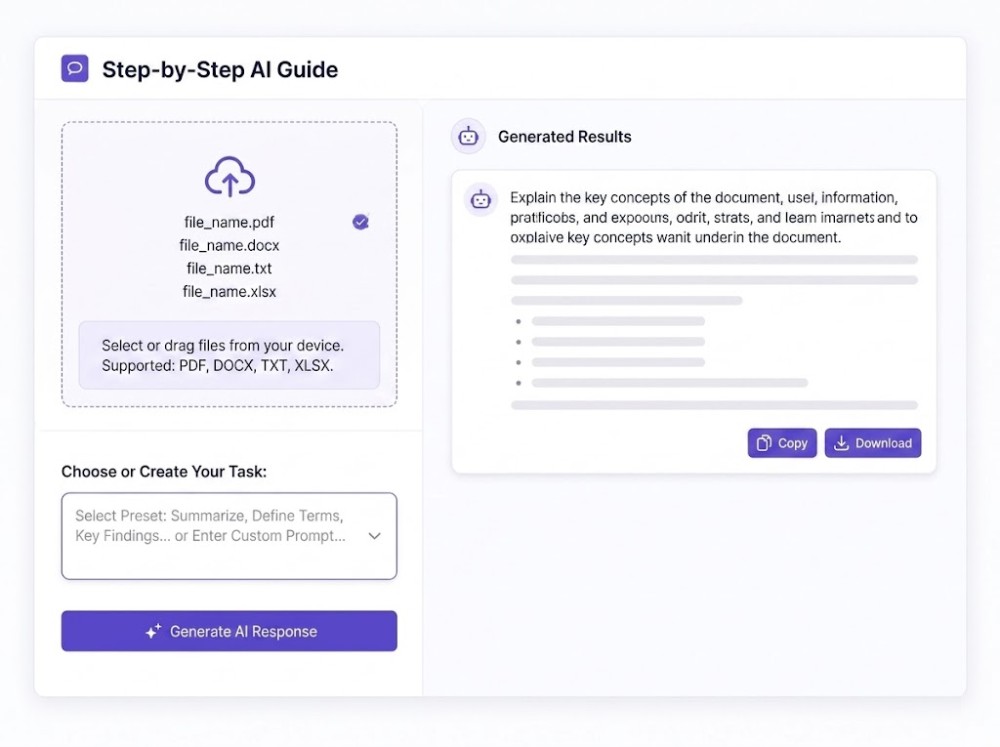
01Upload Your Document
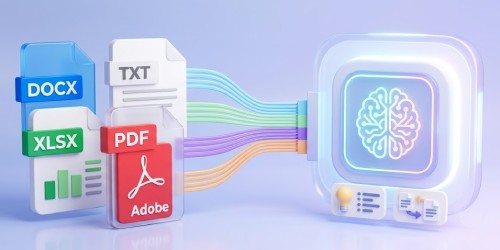
Upload your PDF, DOCX, TXT, or XLSX file to begin. The AI prepares your document so you can ask questions, generate summaries, or analyze its content.
-
02Choose a Task
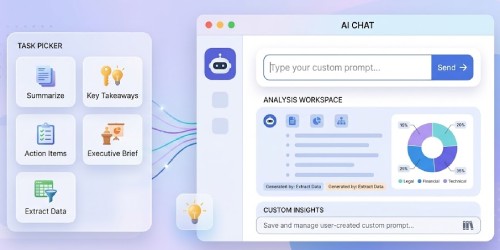
Select a preset task, such as summarizing or asking questions, or enter your own custom prompt to tell the AI exactly what you need.
-
03Get Results
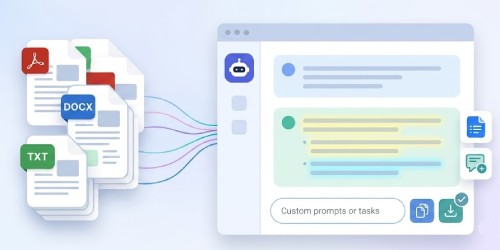
Generate the AI response, review the results, then copy the text or download it for future reference, sharing, or additional editing.


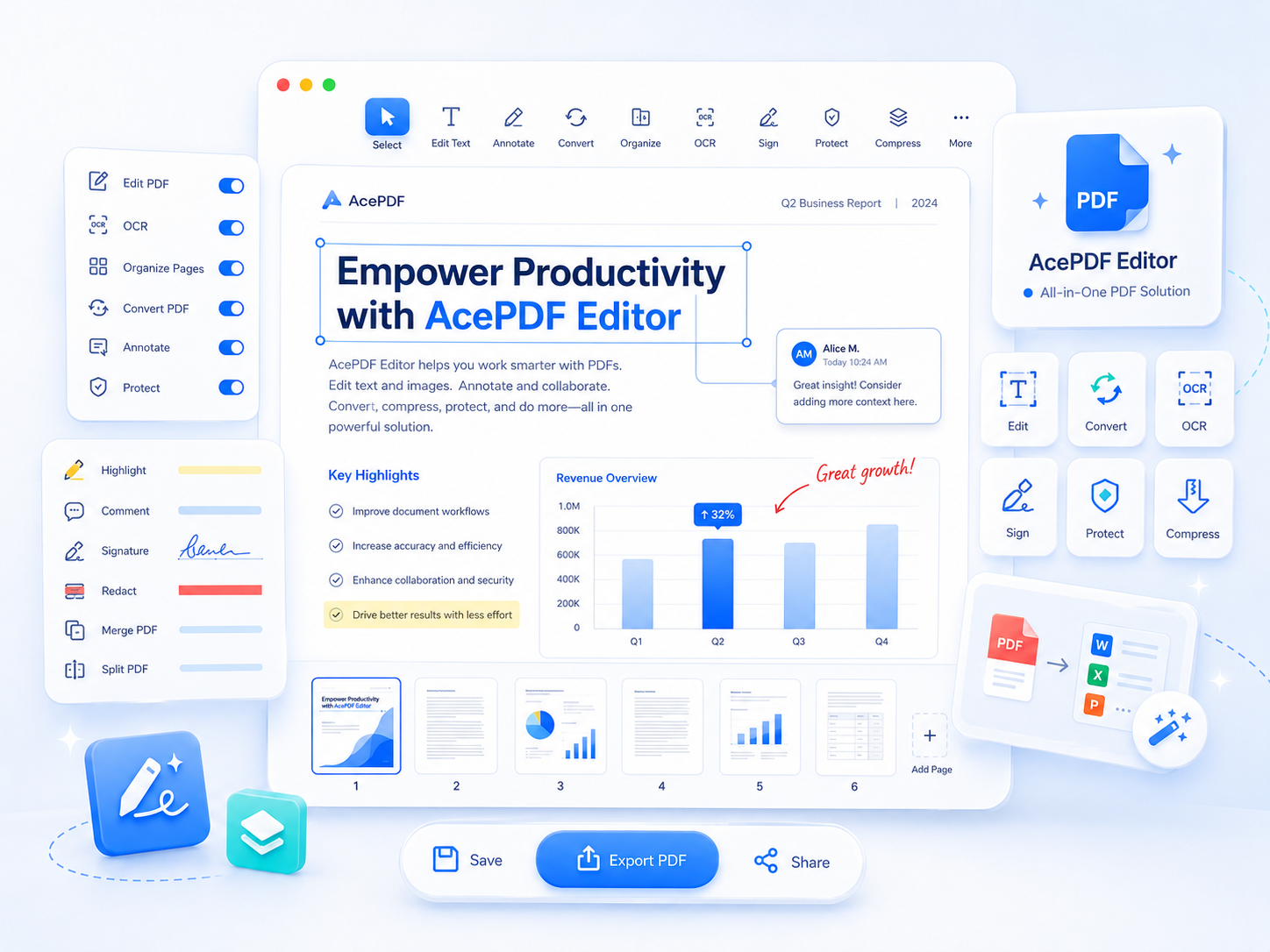
Go Pro with AcePDF Editor
- Advanced PDF Editing
- OCR Text Recognition
- PDF Format Conversion
- Password Protection
- Page Organization Tools
- Form Filling & Signing

Frequently Asked Questions
To chat with a document, upload a supported PDF, DOCX, TXT, or XLSX file, then choose a preset task such as Summarize, Key Takeaways, Executive Brief, or Extract Data. You can also enter a custom prompt to request specific information from the uploaded document. After the AI generates a response, review the results before copying or downloading them as MD or TXT files. The quality of the response depends on the content available in the uploaded document and how clearly your request is written.
This online chat with Document supports PDF, DOCX, TXT, and XLSX files for AI analysis. Once uploaded, you can use preset tasks or write a custom prompt to generate summaries, extract information, or answer questions about the document. If a file contains scanned pages without selectable text or unsupported content, the AI may not be able to analyze it correctly. For the best results, upload documents with clear, readable text and confirm they open properly before processing.
Yes. Select the Summarize preset to generate an overview of your uploaded document instead of reading it page by page. You can also use Key Takeaways or Executive Brief if you need a different presentation of the information. The generated summary reflects the text available in the uploaded file, so documents with unclear formatting, missing text, or scanned images may produce less complete results. Always review the original document when accuracy is important.
If the generated response does not include the information you expected, try replacing a broad request with a more specific custom prompt. For example, ask the AI to extract action items from a meeting report or summarize a particular section instead of requesting a general overview. The response also depends on the uploaded document's quality and available text. If the relevant information is missing, unreadable, or stored in scanned images, the generated result may be incomplete.
Yes. Chat with Document can help review reports, research papers, meeting notes, manuals, spreadsheets, and class materials by generating summaries, identifying key points, extracting data, or creating executive briefs. You can also download the generated results as MD or TXT files for documentation or further editing. For business, legal, financial, or academic work, treat the AI output as a reference and verify important information against the original document before sharing or making decisions.