













menu

How to Combine Audio Online

  • 01
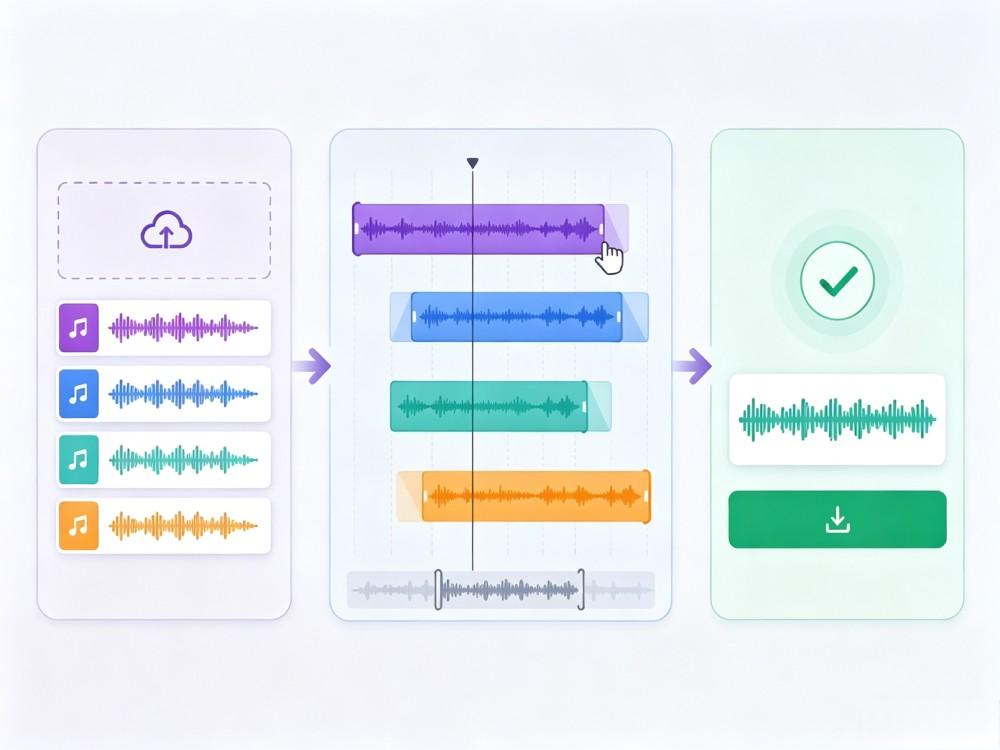
    Upload Audio Tracks

    Add the audio tracks you want to combine, from audio or video files. Both are supported, and up to 5 tracks are supported.

  • 02
    Arrange and Edit

    After uploading, arrange the tracks in your preferred sequence by dragging them into place, trimming the start and end points, and adding fade effects if needed.

  • 03
    Merge and Download

    Next, choose an output format and start the merging process. Once done, preview the merged audio and download it when satisfied.

audio merger step

Combine Audio and Video Audio
Create one audio track from multiple sources. Upload audio files or extract audio from video files without converting them first.
The tool supports up to 5 tracks with a maximum total upload size of 300 MB. Compatible formats include MP3, WAV, WEBM, MP4, MOV, AVI, and more.

Arrange Tracks Easily
Put your tracks in the exact order you want before exporting. This helps you create a smooth listening experience from start to finish.
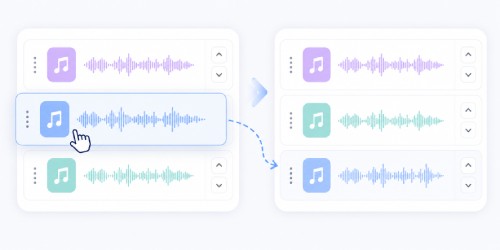
Use drag-and-drop or the up and down buttons to reorder tracks in the audio merger online editor. Adjusting the sequence takes only a few clicks.

Built-In Audio Editing
Clean up your tracks before combining them into one file. Remove unwanted parts and create smoother transitions between clips.
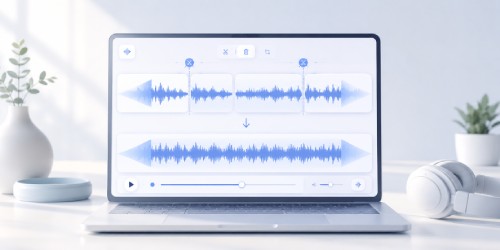
Use trimming and fade-in or fade-out effects while you merge audio files online. These tools help make the final audio sound more polished.

Mobile-Friendly Design
Merge audio files online from your phone, tablet, or computer using a responsive interface that works across modern browsers.

Simple Workflow
Simple Interface
Combine audio online with clear controls that make uploading, arranging, and exporting files straightforward for any experience level.

Reliable Performance
Process and merge five audio tracks smoothly while maintaining stable performance and consistent output throughout editing.

Privacy Protected
Privacy Protected
All uploaded files within the audio merger are automatically removed after 24 hours to protect your privacy and maintain storage security.

pro video editor
crown Upgrade to Pro

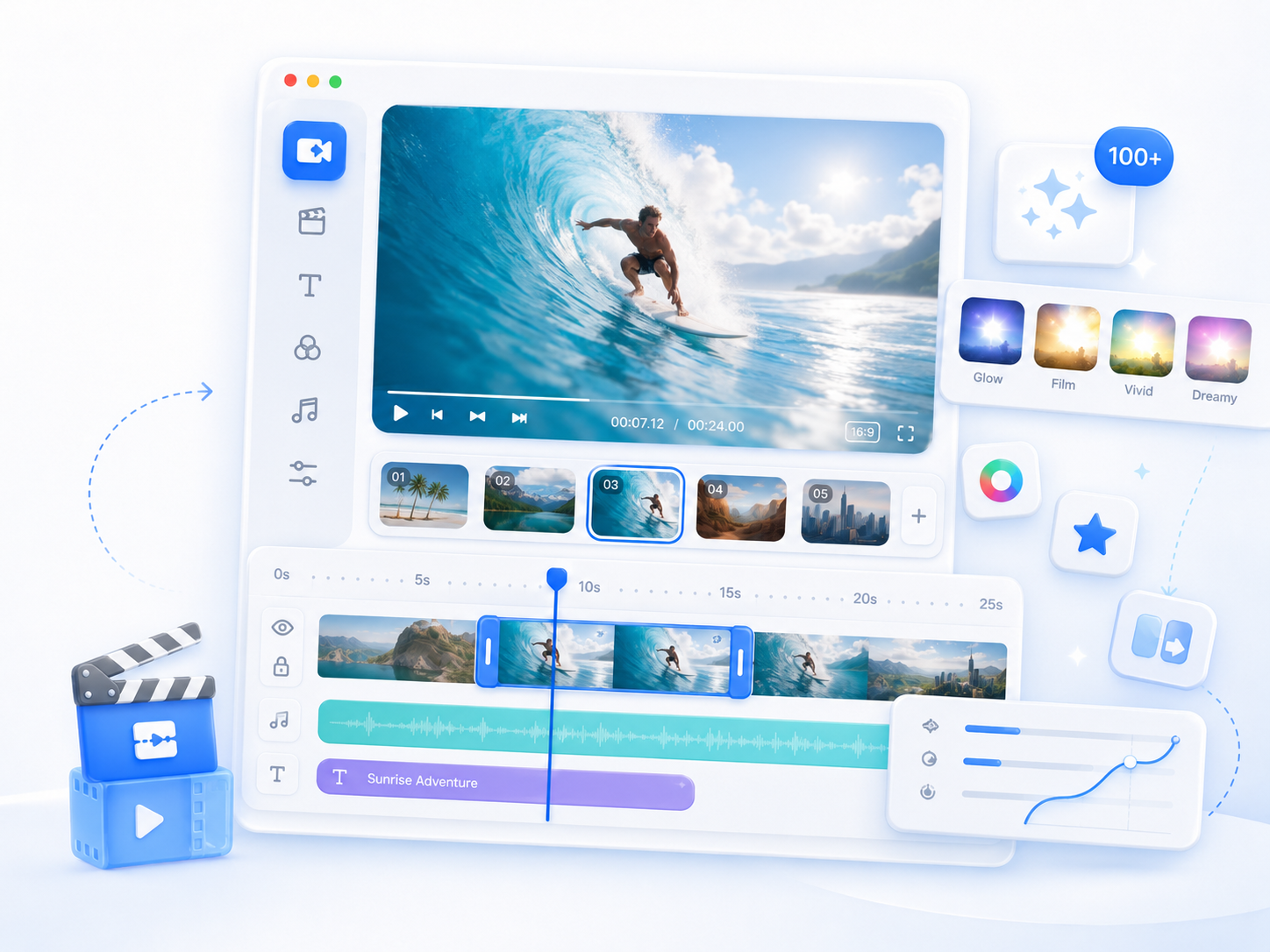
Go Pro with AceThinker Wind Cut

Edit, enhance, and export videos effortlessly with a feature-rich editor built for smooth and efficient workflows.
  • Advanced timeline editing
  • Cross-platform support
  • Social media export presets
  • Available visual effects
  • Smart video enhancements
  • Works offline anytime
4.8 out of 5 (1K+ reviews)
Window 11/10/8/7, macOS 10.7 and above

Frequently Asked Questions

Can I arrange the order before merging audio?

Yes. You can change the order of your audio tracks before merging them by dragging each file into place. The tool also provides up and down buttons you can use. This lets you control the playback sequence so the final merged audio plays exactly as you intend.

Will the merged audio keep the original quality?

The tool is designed to preserve the original audio quality during the merging process whenever possible. The final quality also depends on the source files and the export format you choose. Previewing the merged audio before downloading helps ensure you're satisfied with the result.

Can I combine voice recordings and background music?

Yes. You can combine voice recordings and background music into a single audio file. The tracks are joined in sequence, meaning one plays after another rather than being mixed or layered together simultaneously.

Why do merged audio files sometimes have volume differences?

Volume differences usually come from the original audio files rather than the merging process. If one recording was louder or quieter than another, those differences will remain in the final file. For a more consistent listening experience, adjust the audio levels in an audio editor before merging.

What should I check before downloading the merged file?

Before downloading, preview the merged audio to confirm the track order, trimming, and transitions are correct. Also, check that you've selected the preferred output format and that the entire audio plays as expected. Reviewing these details can help you avoid exporting the file again.

Back to Top
Contact Us