 Aqua App









Free Online Audio Recorder


How to Record Audio Online
-
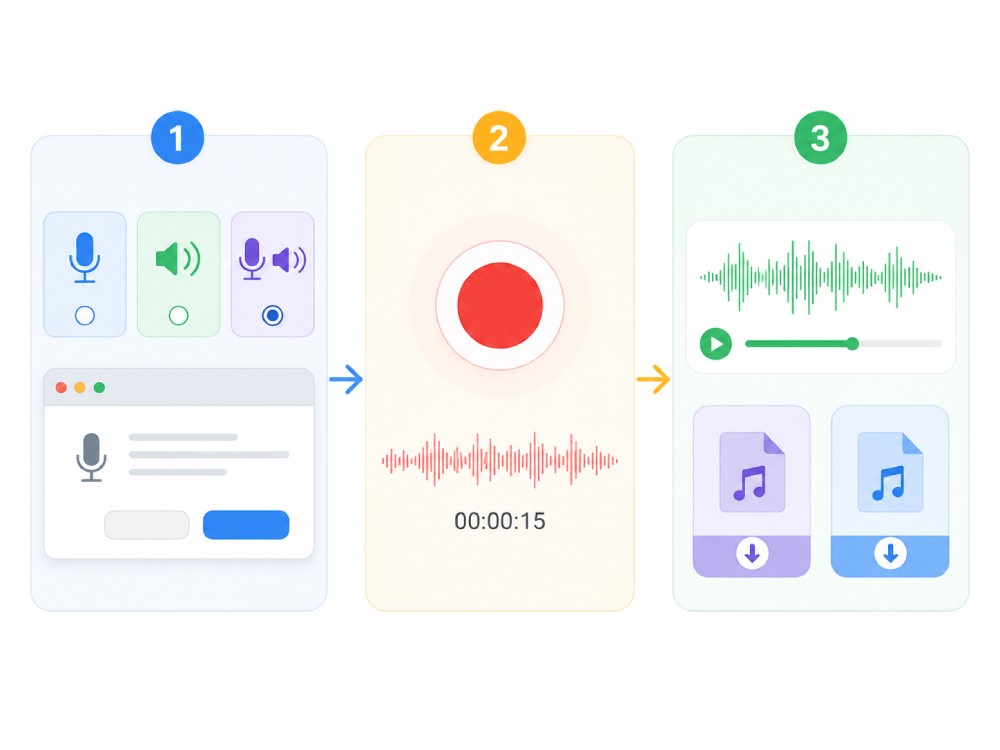
01Select Audio Source
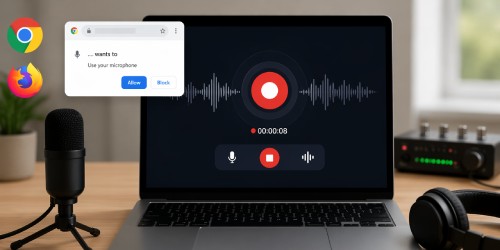
Choose whether to record from your microphone, system audio, or both, then allow your browser to access the selected audio source.
-
02Start Recording
Then start recording by selecting the audio source you want to record and begin speaking or playing audio.
-
03Save Recording
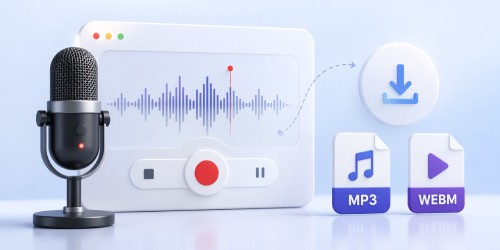
When you're finished, stop the recording to process the audio. Then download it as an MP3 or WEBM file to your device for playback, sharing, or future use.


Unlock More with Aqua Demo
- Longer recording sessions
- Schedule audio recordings
- Multiple output formats
- Advanced recording settings
- Multiple recording modes
- Local file management

Frequently Asked Questions
To record audio online with Aqua App, open the tool in a supported desktop browser and choose your input source—microphone, system audio, or both, depending on your setup. You must allow browser permissions before recording starts. Click Start Recording to begin capturing sound and Stop when finished. The tool processes your recording and allows you to download it in MP3 or WebM format. Limitations include browser compatibility (works best on modern Chrome, Edge, or Firefox) and audio quality, which depends on your device's hardware and the clarity of your input source.
If microphone access is blocked, you need to manually enable permissions in your browser settings. Go to site settings, allow microphone access for the online audio recorder, and refresh the page before trying again. Also check whether another application is already using the microphone, as this can prevent detection. On some devices, incorrect system audio settings may also block input. Recording cannot start without granted permissions, and some corporate or restricted browsers may block access entirely due to security policies.
Yes, the online audio recorder can be used for voice notes, online lessons, interviews, and basic podcast recordings. You can capture microphone audio or system sound depending on your use case. However, recording quality depends on your microphone, environment noise, and system performance. It is not designed for professional studio-grade production but works well for everyday content creation and learning workflows. Always ensure you have permission before recording meetings, classes, or third-party audio, as unauthorized recording may violate platform policies or applicable laws.
To improve recording quality, use a stable internet connection, a good external or built-in microphone, and record in a quiet environment. Position the microphone close to your mouth without causing distortion. Close unnecessary browser tabs and applications to reduce system interference. If recording system audio, ensure the original playback quality is clear since the tool cannot enhance poor source audio. Background noise, low-end microphones, and unstable system performance will directly affect final output quality, even if settings are correct.
Yes, once you stop recording, the online audio recorder lets you download your file directly in MP3 or WebM format. MP3 is suitable for general playback, sharing, and editing, while WebM is better suited to browser-based environments. The file is generated based on your selected recording session and saved to your device. A limitation is that longer recordings may take slightly more processing time depending on browser performance and device memory.