 Aqua App











Free Online Text to Speech Converter


How to Generate AI Voice from Text Online
-
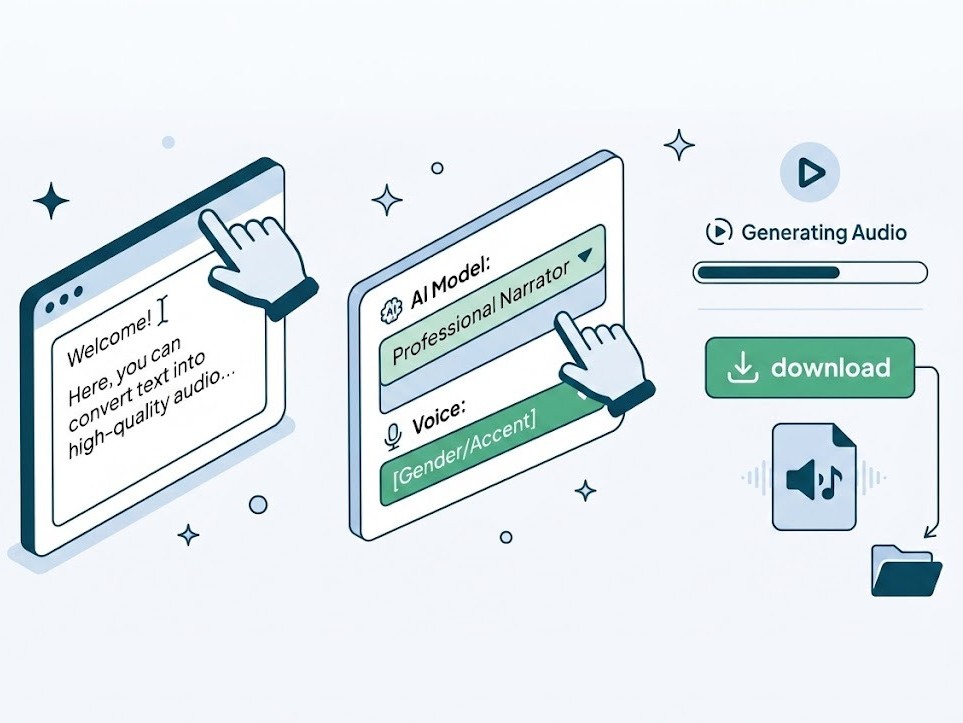
01Enter Text
Type or paste your text into the editor, then choose either Single Speaker or Multi Speaker mode based on your narration needs.
-
02Choose Voice
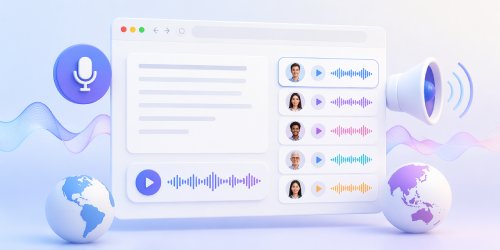
After inputting your text, select an AI model and then choose a voice from your preferred country or language.
-
03Generate Audio
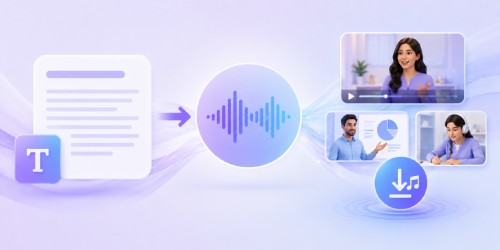
Finally, convert your text into speech, preview the result, and download the generated audio when you're satisfied.


Switch to the Pro Video & Audio Editor
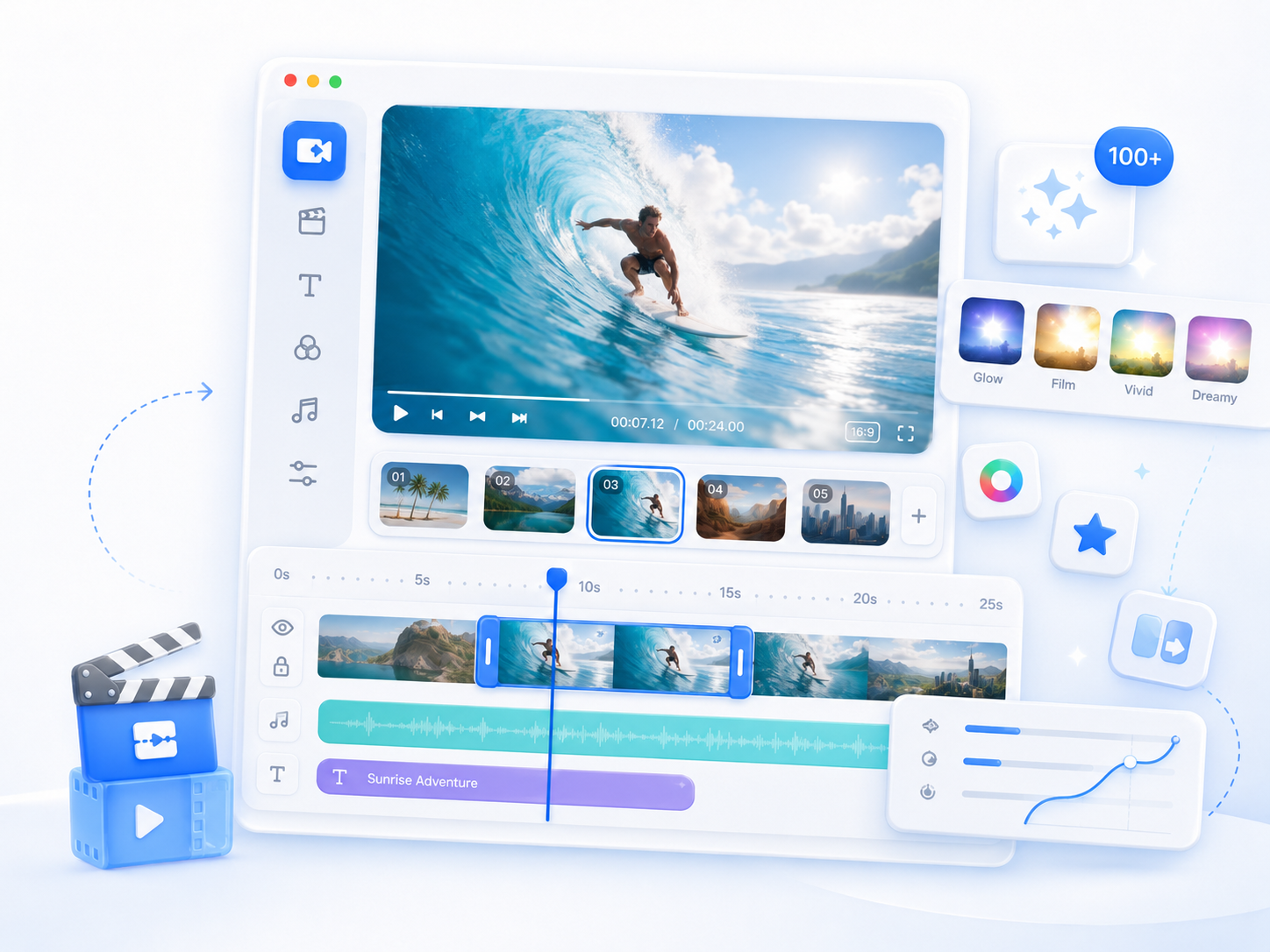
- Faster processing performance
- Advanced editing controls
- Extended file handling
- Multi-track editing support
- Offline editing access
- Improved export options

Frequently Asked Questions
The text-to-speech online tool converts written text into spoken audio using AI voice models. You simply paste or type your content, select a voice option, and generate speech directly in your browser. The system processes your input and produces an audio file that you can preview before downloading, making it useful for creating narration, learning materials, or other spoken content without manually recording.
Yes. You can convert text to speech online using AI voices from Google Gemini, ElevenLabs, and Edge TTS to create clear, realistic narration for videos, presentations, lessons, and other digital content. The quality of the generated speech relies on your script, punctuation, and the selected AI voice. For the best results, use clear sentence structure and preview the generated audio before downloading, as pronunciation and speaking style may vary between voices and languages.
The online text-to-speech tool supports multiple languages and voice options, depending on the selected AI model. You can choose different languages such as English, Afrikaans, Albanian, Arabic, French, and more to match your content and audience needs. Voice options may also include male and female voices, with variations such as younger or more mature tones, depending on availability. This flexibility helps you create natural-sounding narration for global or localized content across various project types.
Yes, you can convert text to speech online and use the generated audio in videos, presentations, tutorials, or other digital projects. After generating the speech, you can download the audio as an MP3 file and import it directly into your editing software. This makes it easy to add voice narration to different types of content without having to record it manually. It is also important to ensure your script is well-structured so the voice output sounds natural and clear for your intended use.
Sometimes text-to-speech online output may sound less natural due to long sentences, missing punctuation, or complex wording. AI voices follow structure and punctuation to create natural speech flow, so poorly formatted text can affect results. Reviewing and adjusting your script before generating audio can significantly improve clarity, pacing, and overall voice quality.