 Aqua App









Free Online Video to GIF Converter


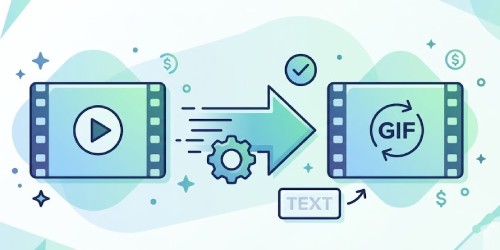
How to Turn Video into GIF
-
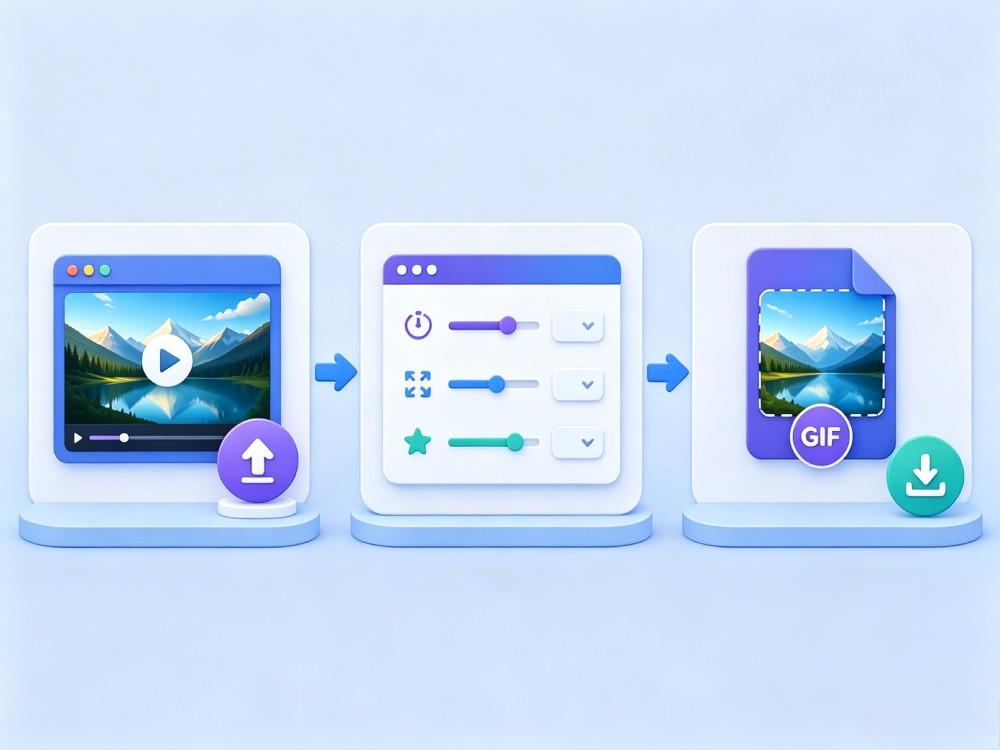
01Upload Your Clip
Upload a short video clip from your device to the Video to GIF Converter and wait for it to finish loading.
-
02Adjust GIF Settings
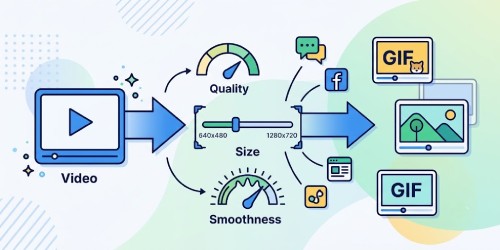
Choose your preferred frame rate, output size, GIF quality, and enable loop animation before generating the final GIF.
-
03Generate and Download
Generate the GIF, preview the result, and download the finished GIF to your device for sharing or personal use.


Go Further with AceThinker VidElement
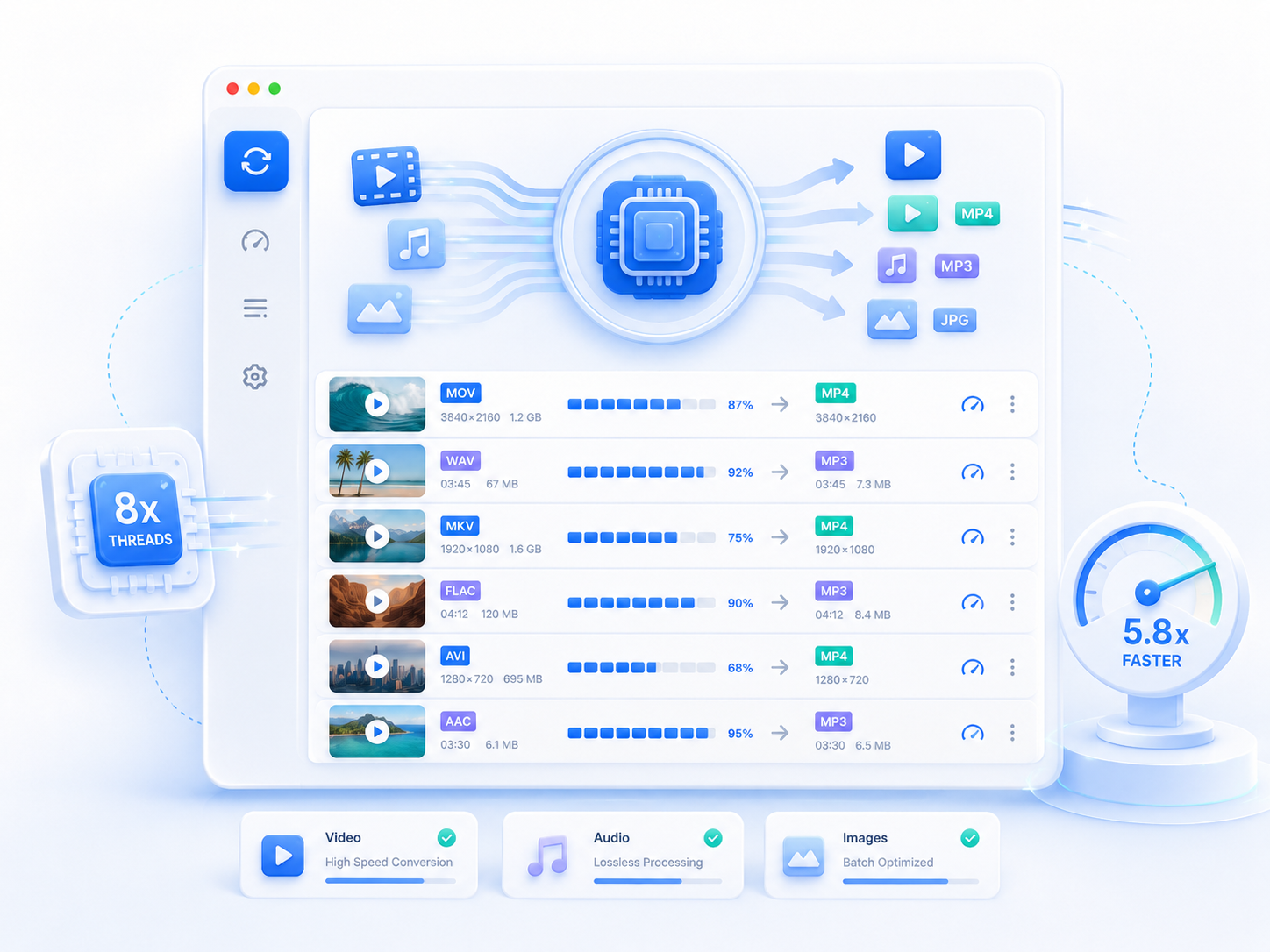
- Batch media conversion
- Device & platform presets
- Audio extraction tools
- 1,000+ format support
- High-speed video conversion
- Custom output settings

Frequently Asked Questions
The tool supports common formats like MP4, MOV, MKV, WebM, and more. If your file uploads successfully, you can convert it directly without extra steps. For best results, use a short, high-quality clip so the GIF stays smooth, and the file size remains manageable. Longer videos may produce larger GIFs, so trimming them first can help you get cleaner results.
The Video Resizer includes presets for several popular platforms and video layouts. You can resize videos for TikTok, Instagram Reels, YouTube, Instagram feed posts, and other platforms that use common aspect ratios. Choosing the correct dimensions helps your video display properly without having to manually enter width and height values for every project.
Not always. Although GIFs do not contain audio, they can sometimes be larger than the original video because GIFs use a different file format and compression method. The final size depends on factors such as the video's length, output dimensions, frame rate, and selected quality settings. Using lower quality or a smaller output size can help reduce the exported GIF size.
A large GIF usually results from higher quality settings, larger output dimensions, higher frame rates, or a longer source video. Each of these factors increases the amount of image data stored in the animation. To create a smaller GIF, try lowering the quality setting, reducing the output size, choosing a lower frame rate, or converting a shorter video clip before exporting.
No. GIF files only contain animated images and do not support audio playback. When you convert a video into a GIF, the sound is automatically removed from the final output. If you need to keep both the video and its audio, consider exporting the content as a video format instead of converting it to a GIF.