 Aqua App













Free Online Video Masking Tool


How to Mask Parts of a Video
-
01Upload Your Video
Add the video file you like to edit from your device to begin the masking process.
-
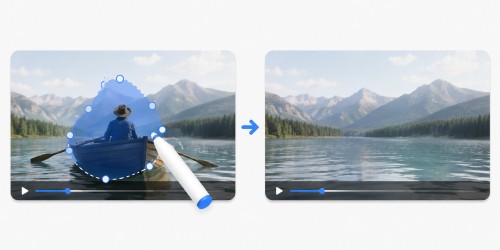
02Select the Area to Mask
Draw over the part of the video you want to mask, then let the tool identify the selected region for processing.
-
03Mask and Download
Process the video to apply the mask, then preview and download the edited MP4 file once it's ready.


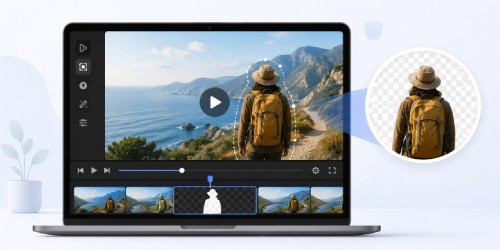



Edit More with Wind Cut Editor
- Refine Every Scene
- Trim Unwanted Clips
- Enhance Visual Style
- Edit Audio Tracks
- Add Smooth Transitions
- Arrange Multiple Clips

Frequently Asked Questions
The Video Masking Tool lets you hide or cover selected parts of a video by drawing directly over them. You can mask objects, text, logos, or any visible element you want to isolate or remove from view. The online video masking tool does not delete objects from the original footage; instead, it applies a mask over the selected area. This makes it useful for cleaning up visuals, focusing attention, or preparing content for presentations, tutorials, and social media edits.
The tool works by analyzing the area you select and applying a visual mask over it during processing. You simply upload your video in supported formats such as MP4, MPEG, MPG, OGV, and other common video files, draw over the object or region, and let the system process the edit. Unlike advanced AI object removal tools that reconstruct backgrounds, this tool focuses on masking the selected area. The output is a processed MP4 video where the chosen region is covered while the rest of the video remains unchanged.
You can cover unwanted people or objects by masking them, but the original content is not physically removed from the video. The tool overlays a mask on the selected area to hide it from view. This works best when the background is not heavily dynamic. For professional-grade object removal with background reconstruction, dedicated AI video inpainting tools may be more suitable depending on your project needs and quality expectations.
The final appearance depends on how complex the video background is and how precisely the mask is drawn. Since the tool applies a mask rather than rebuilding pixels, simple backgrounds tend to look cleaner. In fast-moving or highly detailed scenes, the masked area may appear more noticeable. To improve results, carefully trace the object and ensure the selection stays accurate throughout the timeline before exporting the final MP4 video.
Videos with stable backgrounds, minimal motion, and clear subject separation work best for masking. Simple scenes make it easier for the video mask online tool to maintain consistent coverage across frames. Highly complex footage with fast movement, camera shake, or crowded visuals may require more careful masking and review. Uploading a high-quality source video also helps maintain better clarity in the final exported MP4 file after processing.