 Aqua App







Create Videos from Text with AI
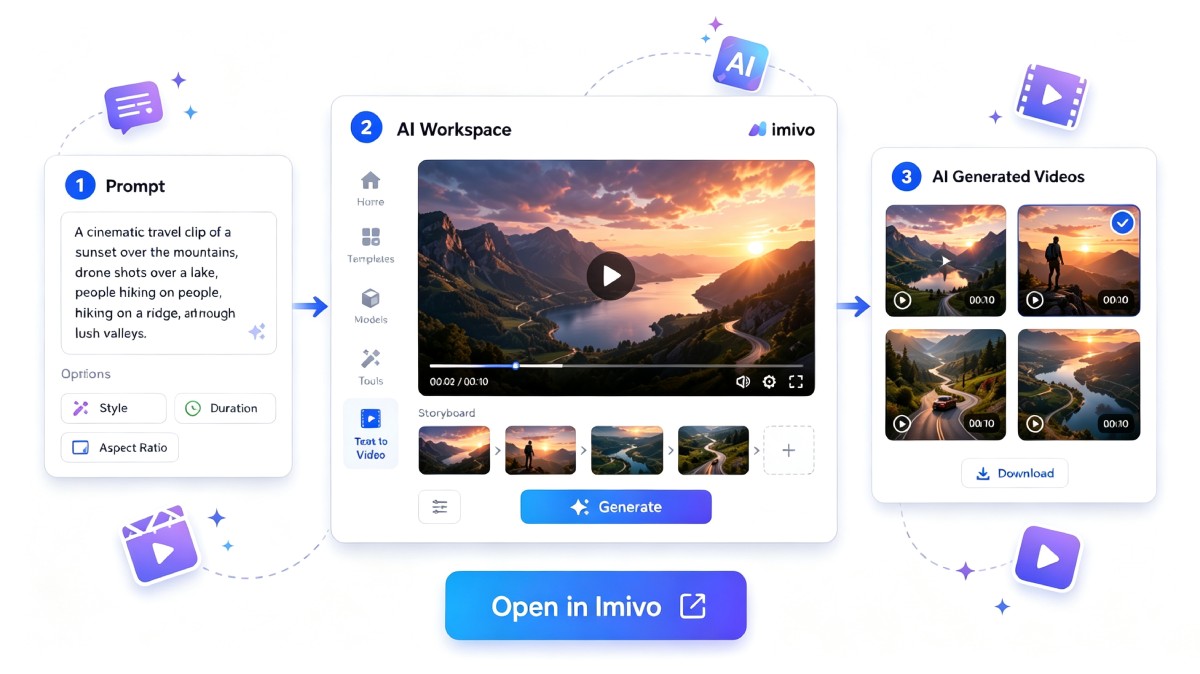


How to Generate Video from Prompt
-
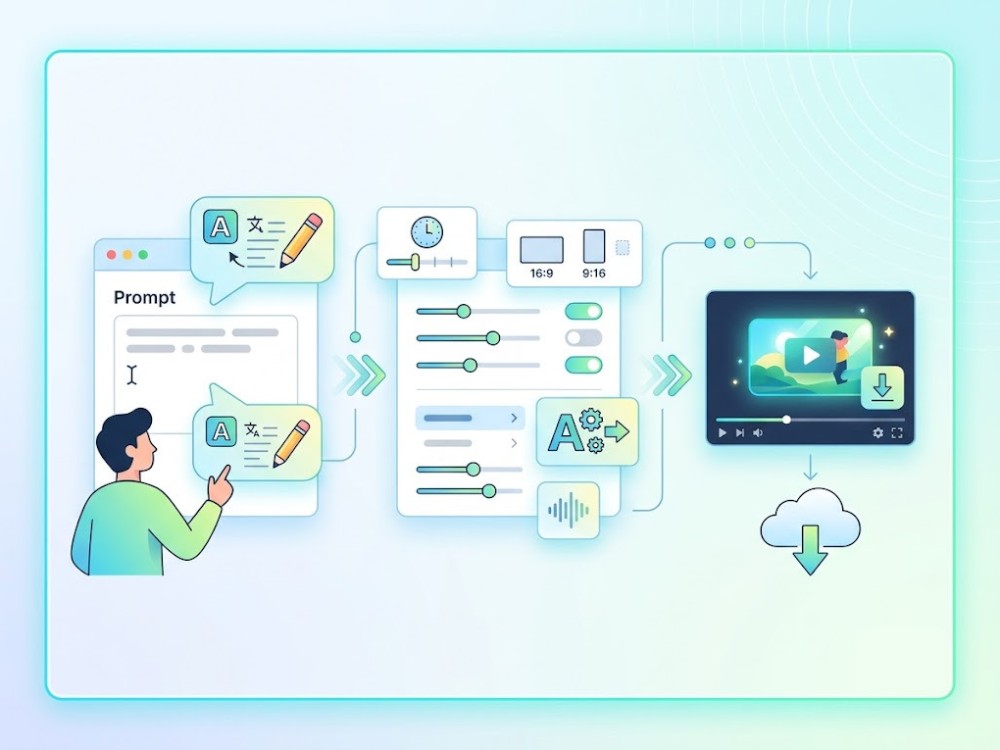
01Enter Your Prompt
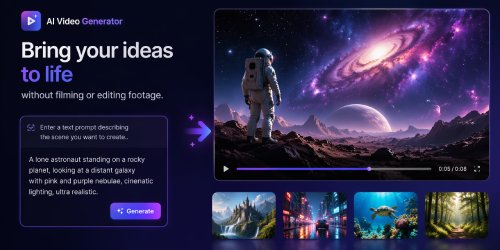
Type a clear text prompt describing the scene, subject, or action you want the AI to turn into a video.
-
02Customize Video Settings
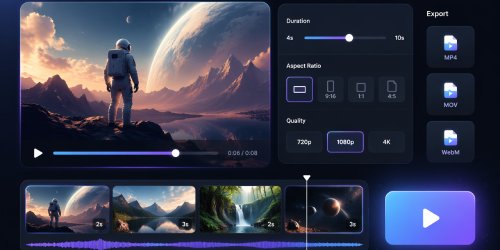
Choose your preferred video duration, aspect ratio, output format, and AI model before creating the video.
-
03Generate and Download
After that, generate your video, preview the result, and download it in MP4, MOV, or WebM format.


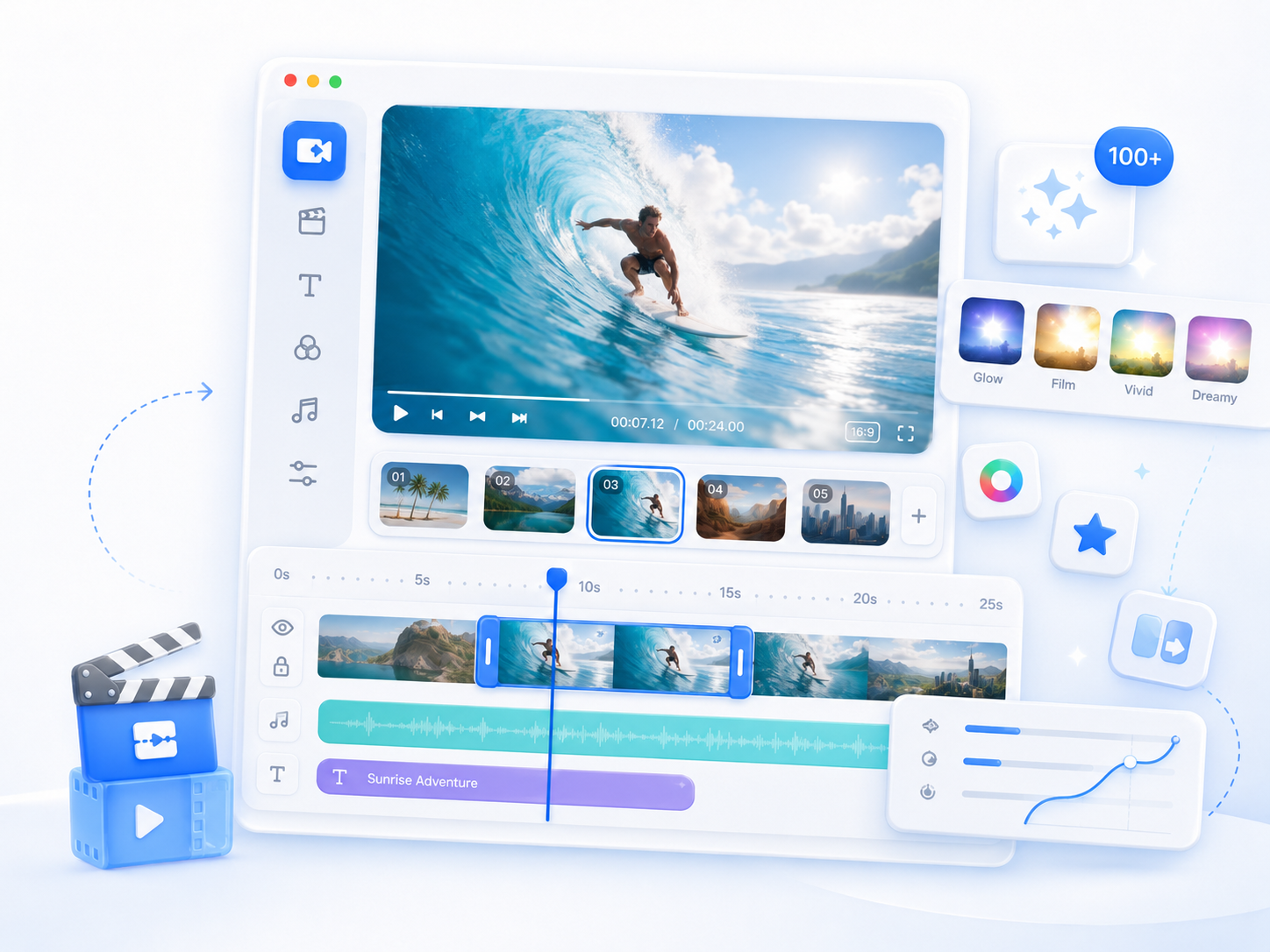
Go Pro with Imivo AI Creative Suite
- Creative video effects
- Advanced photo effects
- AI editing tools
- Image generation tools
- Creative templates
- Regular feature updates

Frequently Asked Questions
The Text to Video tool generate short video from text. Enter a description of the scene you want to create, then choose an AI model such as Vidu 1.5, KlingAI, or Veo 3.0, and select your preferred duration, aspect ratio, and output format. Once the video is generated, you can preview it and download it in MP4, MOV, or WebM format. Processing time depends on the selected model, prompt complexity, and current server demand.
Yes. The tool can generate 4 to 10-second videos, making it suitable for short-form content on social media platforms. Before generating your video, you can choose an aspect ratio and download the finished result in MP4, MOV, or WebM format. Keep in mind that different platforms have different video specifications, so you may need additional editing if your project requires a specific length or format.
AI models interpret prompts differently, so the final video may vary from your original description. Models such as Vidu 1.5, KlingAI, and Veo 3.0 can produce different scene layouts, motion, and visual styles even when using the same prompt. Prompts with multiple subjects or complex actions may also produce less predictable results. If needed, refine your prompt or try another AI model to generate a different version.
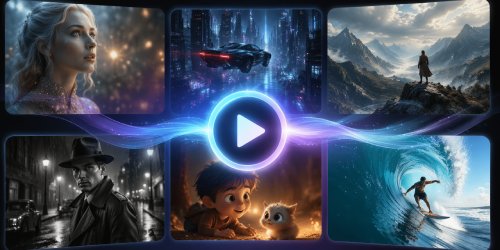
Yes. Text to Video is useful for creating concept videos, product showcases, marketing ideas, presentation visuals, and storyboards before producing a final video. It helps you quickly visualize scenes without having to record footage or build animations manually. Since generated videos are limited to 4 to 10 seconds, they work best for short demonstrations or creative concepts rather than complete presentations.
Before downloading or sharing your video, preview the generated result to confirm that it matches your intended scene and message. Check that the selected duration, aspect ratio, and output format are suitable for your project, as these settings cannot be changed after generation. If the video contains unexpected details or doesn't meet your expectations, revise your prompt or choose another AI model and generate a new version. Use original prompts or content you have permission to use when publishing AI-generated videos.