 Aqua App









Free Online AI Transcriber


How to Convert Audio and Video to Text?
-
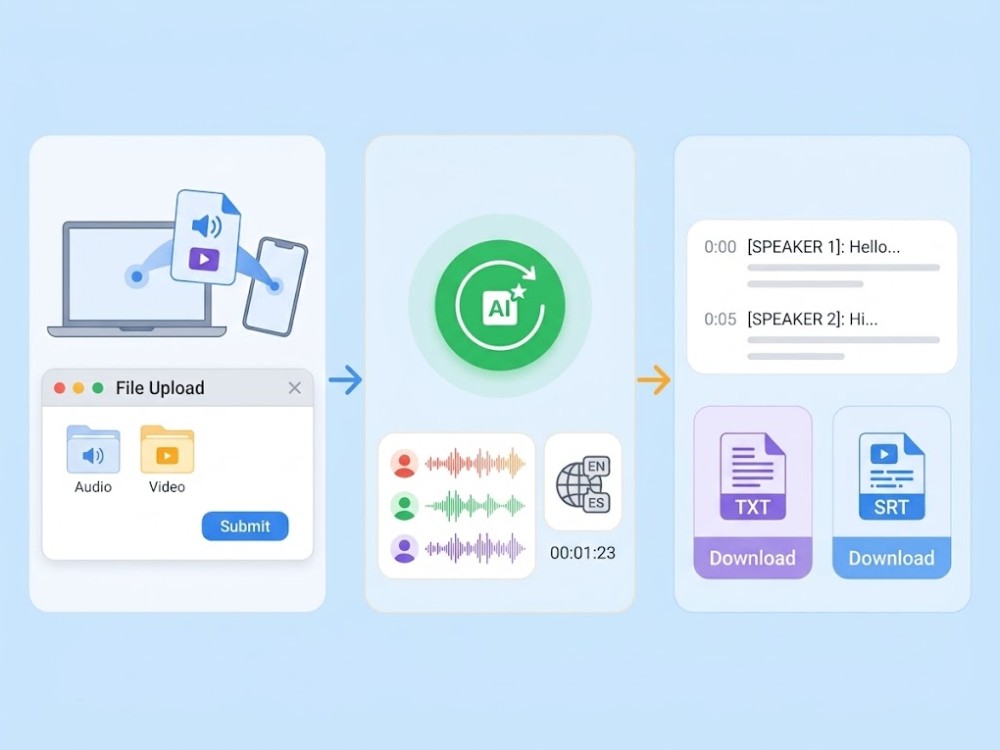
01Upload Your File
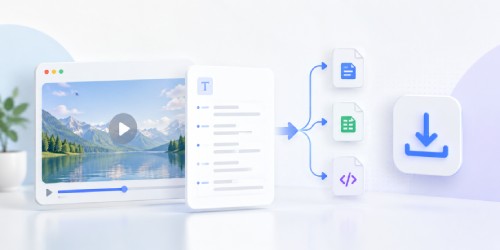
Input an audio or video file from your device. Media files up to 300 MB can be processed securely in your browser.
-
02Generate Transcript
Start AI transcription to automatically detect the language, identify speakers, and create a timestamped transcript.
-
03Review & Export
Afterward, search or review the transcript, then download it as a TXT transcript or SRT subtitle file.


Take It Further with Wind Cut
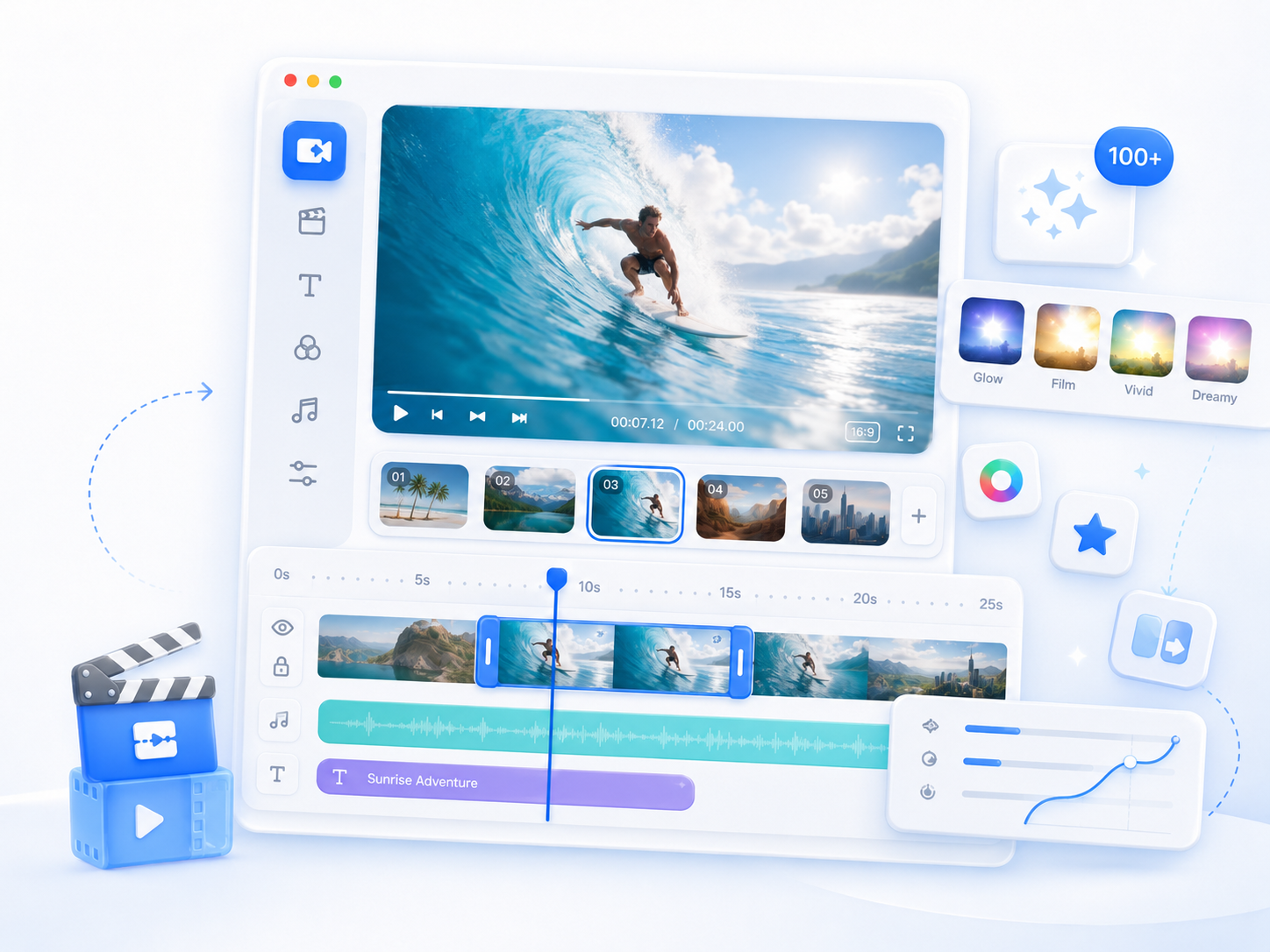
- Timeline video editing
- Built-in music library
- Multiple video effects & filters
- Creative transitions
- Audio editing controls
- Text and title tools

Frequently Asked Questions
To convert audio or video to text online, upload your supported audio or video file, then choose either Standard Transcript for fast, clean transcription or AI Features for additional options like speaker detection and timestamps. Start the transcription process, and the tool will automatically analyze your recording and generate a transcript. Once the transcript is ready, review it for accuracy, especially if the recording contains background noise or multiple speakers. You can then export the transcript as a TXT file or download subtitles in SRT format for use in video editors, media players, or subtitle workflows.
Transcription accuracy depends largely on the quality of your recording. Clear speech, a reliable microphone, and minimal background noise help the tool generate more accurate transcripts. Factors such as overlapping conversations, fast speech, strong accents, low recording volume, or distorted audio can reduce accuracy. For the best results, record in a quiet environment whenever possible. After transcription, review the generated transcript and verify names, punctuation, and technical terms before using it professionally.
Transcription accuracy depends largely on the quality of your recording. Clear speech, a reliable microphone, and minimal background noise help the tool generate more accurate transcripts. Factors such as overlapping conversations, fast speech, strong accents, low recording volume, or distorted audio can reduce accuracy. For the best results, record in a quiet environment whenever possible. After transcription, review the generated transcript and verify names, punctuation, and technical terms before using it professionally.
Yes. After transcription is complete, you can download your results as an SRT subtitle file, making it easy to add captions to tutorials, presentations, online courses, product demos, and social media videos. SRT files are supported by many video editing applications and media players, allowing you to synchronize subtitles with your content. Before publishing, review the subtitles to ensure that the timing, names, punctuation, and any specialized terms are accurate, as transcription quality may vary with the clarity of the original recording.
You can upload a variety of common audio and video formats for transcription. Supported audio formats include MP3, WAV, WebM, and more, while supported video formats include MP4, MOV, AVI, and more. After uploading your file, choose either Standard Transcript or AI Features, then start the transcription process. The tool will analyze your recording and generate transcripts, subtitles, or summaries based on your selected option. For the best results, use recordings with clear audio, as background noise or poor sound quality may affect transcription accuracy. Only upload audio or video that you own or have permission to process.