 Aqua App














Free Online Audio Mixer


How to Mix Tracks Online
-
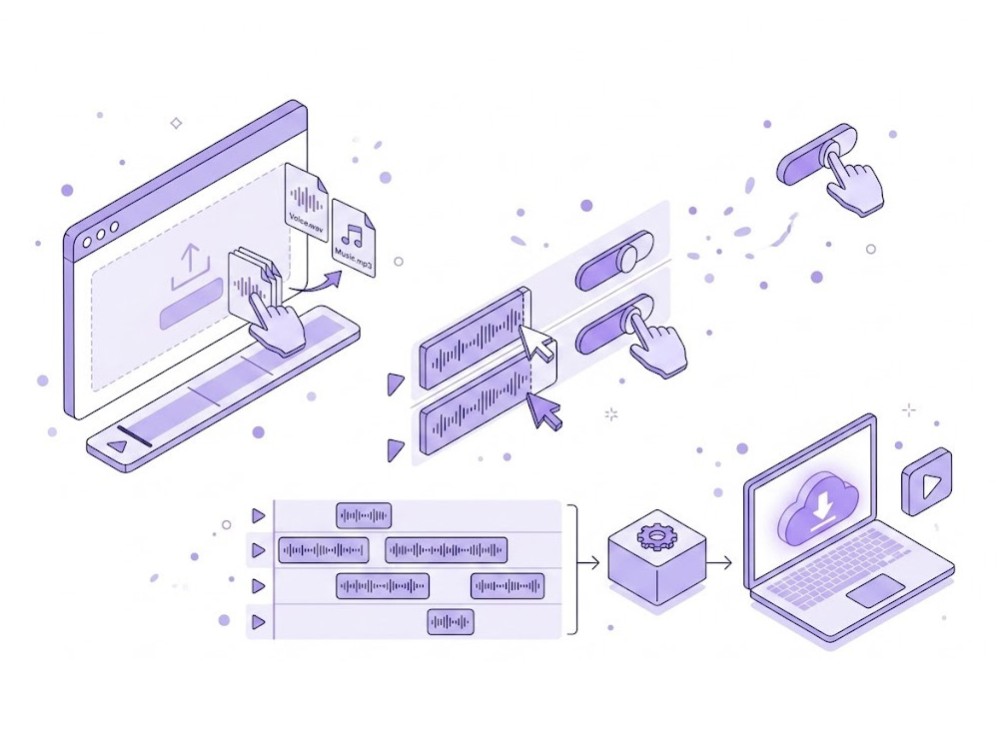
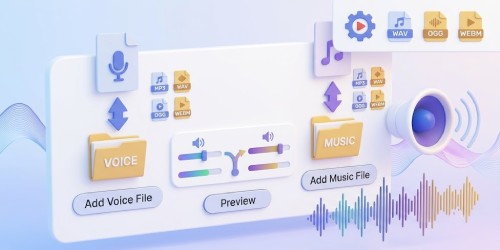
01Add Audio Tracks
Add the voice or speech and the background music you want to mix; both support formats such as MP3, WAV, OGG, and more.
-
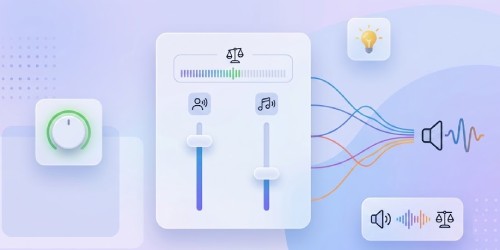
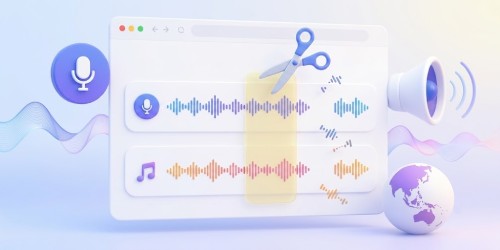
02Trim and Adjust Volume
Once uploaded, trim and adjust the volume for both audio files. You can also select from the preset audio mix settings.
-
03Mix and Download Audio
After that, click the “Mix Audio” button to combine the voice and background music. Then click the "Download Audio" button to save the mix.


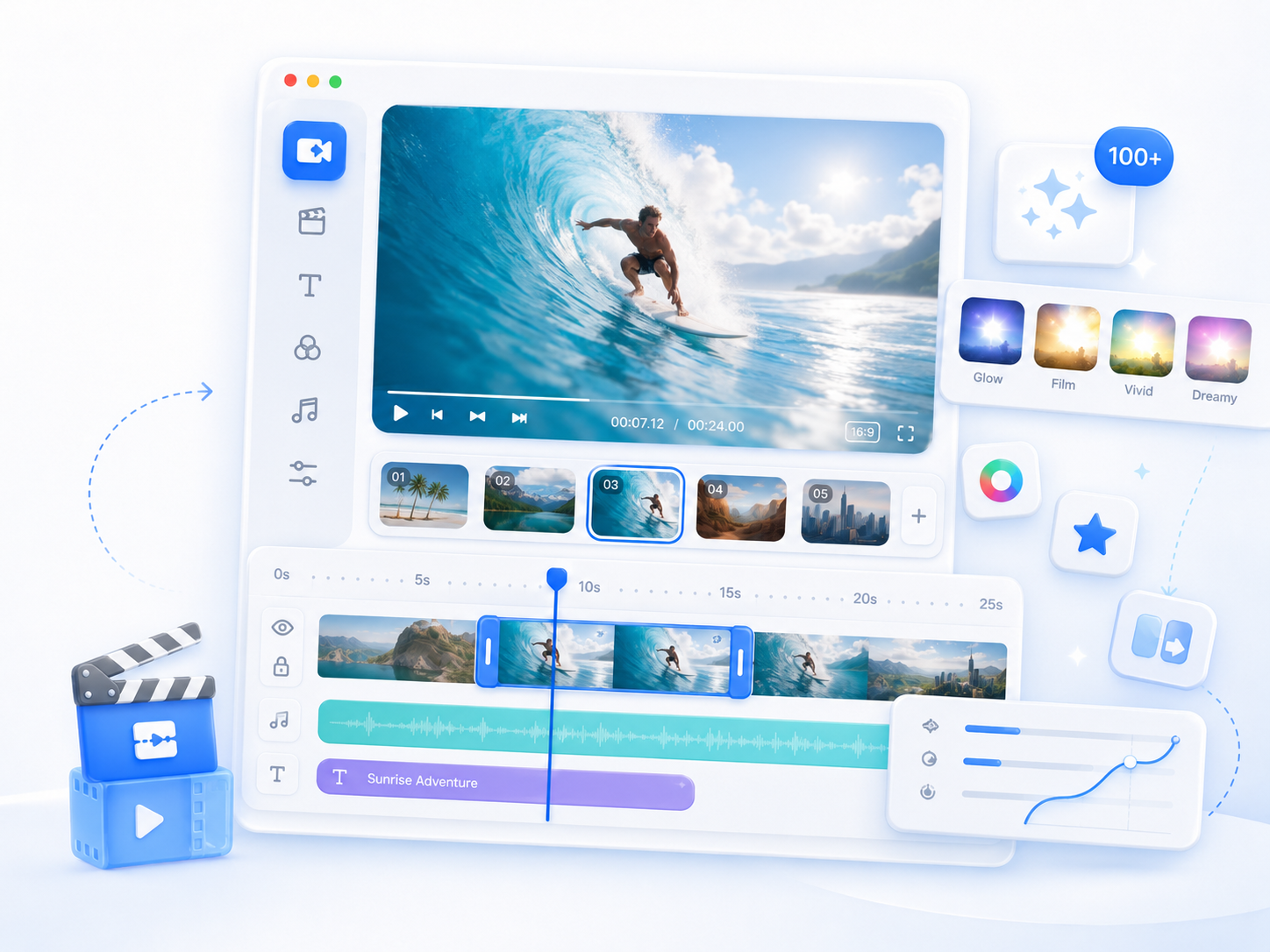
Go Pro with AceThinker Wind Cut
- Offline audio editing
- Larger file support
- Advanced audio timeline editing
- Available music presets
- Faster audio processing
- Advanced audio controls

Frequently Asked Questions
Upload one voice or speech recording and one background music file to the audio joiner. Adjust the volume of each track until they sound balanced, then preview the result before exporting. This workflow is useful for creating voiceovers, presentations, podcasts, and other projects that combine clear narration with background music.
Yes. The Online Audio Mixer lets you control the volume of the voice recording and background music independently. Lower the music if it distracts from the narration or increase the voice volume for better clarity. Previewing the mix before exporting helps ensure both tracks sound balanced.
The online audio mixer supports common audio formats, including MP3, OGG, WAV, and WEBM, with a maximum upload size of 300 MB. For the best results, use complete, high-quality audio files. If a file cannot be uploaded, check that it is in a supported format and does not exceed the size limit.
If the background music overpowers the narration, reduce the music volume and preview the mix again before exporting. Starting with a clear voice recording also improves the final result. Small volume adjustments usually create a more balanced and comfortable listening experience.
Listen to the full preview to make sure the voice is clear and the background music is at an appropriate level. If you've trimmed either track, check that the timing matches your recording. Before sharing or publishing the finished audio, ensure you have permission to use any music included in the mix.