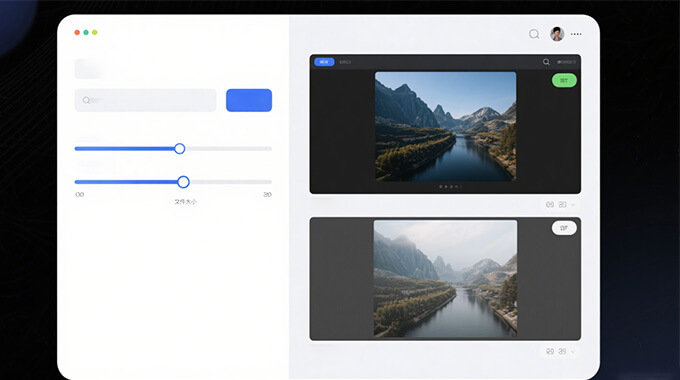
After you compress your photo, our tool provides a clear summary of the changes made. You'll see the original size, the new size, and the exact percentage by which your image was reduced.
With that, it helps you understand how effective the compression was without needing to guess. So, if you're looking to compress image size to save space or prepare files for a website, it's useful to see those details.


After you compress image files, you can make a quick edit, such as cropping, rotating, or flipping. These features help you adjust your photo just the way you want it, without needing another app.
Not only that, but this online tool also provides filters and allows you to adjust the brightness, contrast, saturation, and more. Therefore, if you wish to edit the compressed image before saving it, all the necessary tools are available in this tool.
You don't need to worry about file size limits here. You can upload large images and still compress them smoothly without any issues. This means you won't waste time resizing or cropping your files before using the tool.
If you often compress image online and deal with high-resolution photos, this feature makes things so much easier. You get full access, every time, completely free and easy to use.

The compressed pictures feature reduces the size of your image files, allowing them to take up less space. It compresses the file size without significantly altering the appearance of your photo. With that, it helps you save storage space and share pictures online more quickly.
First, it helps save storage space on your device or cloud. Second, smaller files upload and download faster, making sharing easier. Together, these benefits make handling images quicker and more efficient.
Image compression reduces unnecessary data in a photo file. It removes details that your eyes might not notice to shrink the size. Additionally, the goal is to maintain a visually appealing image while using less space.
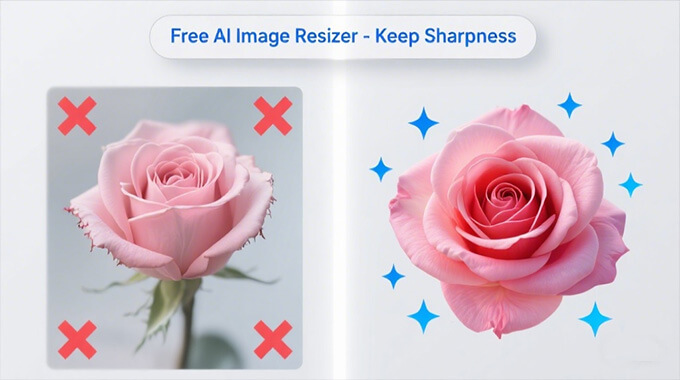
Compression can slightly reduce image quality, particularly with more aggressive compression settings. But good tools keep the picture clear and sharp enough for most uses. It’s all about balancing size and the overall quality of the photo.
Lossy compression reduces image file size by permanently removing some image data, which can compromise quality. On the other hand, lossless compression retains all the original data while still making files smaller, albeit to a lesser degree. You choose lossy for smaller sizes or lossless for perfect quality.
This online image compressor supports various image file formats, including JPG, PNG, GIF, and more. So, whether your photo came from your phone, camera, or online, they are all supported. That way, you don’t have to worry about file types, just upload and compress!